
TNG Scan QR Top Up at LUCKYTOWN PLUS - Complete Guide
Why Choose TNG Scan QR for Top Ups at LUCKYTOWN PLUS?
Fast and Convenient QR Code Deposits
LUCKYTOWN PLUS offers TNG Scan QR as a fast and convenient way to top up your account. Simply scan the QR code with your Touch N Go e-wallet, complete the transfer, and your funds will be processed quickly. TNG Scan QR supports multiple payment methods including UPay and Go Pay.
Quick Processing Within 15 Minutes
Your deposits are processed promptly by the LUCKYTOWN PLUS system. Most transactions are completed within minutes, and you'll receive a confirmation once your funds are credited. If payment is not received within 15 minutes, customer support is ready to assist.
Secure Transactions
TNG Scan QR at LUCKYTOWN PLUS uses secure QR code technology to ensure your transactions are safe. Always scan the official QR code displayed in the app and complete your payment promptly.
Two TNG Scan QR Options at LUCKYTOWN PLUS
Option 1: UPay TNG
LUCKYTOWN PLUS supports UPay as one of the TNG Scan QR payment methods. Follow the UPay-specific steps below for a smooth deposit experience.
Option 2: Go Pay TNG
Go Pay is another convenient TNG Scan QR option available at LUCKYTOWN PLUS. The process includes filling in your trading account name before scanning the QR code.
Step-by-Step Guide to TNG Scan QR Top Up at LUCKYTOWN PLUS

UPay TNG Scan QR - Step-by-Step
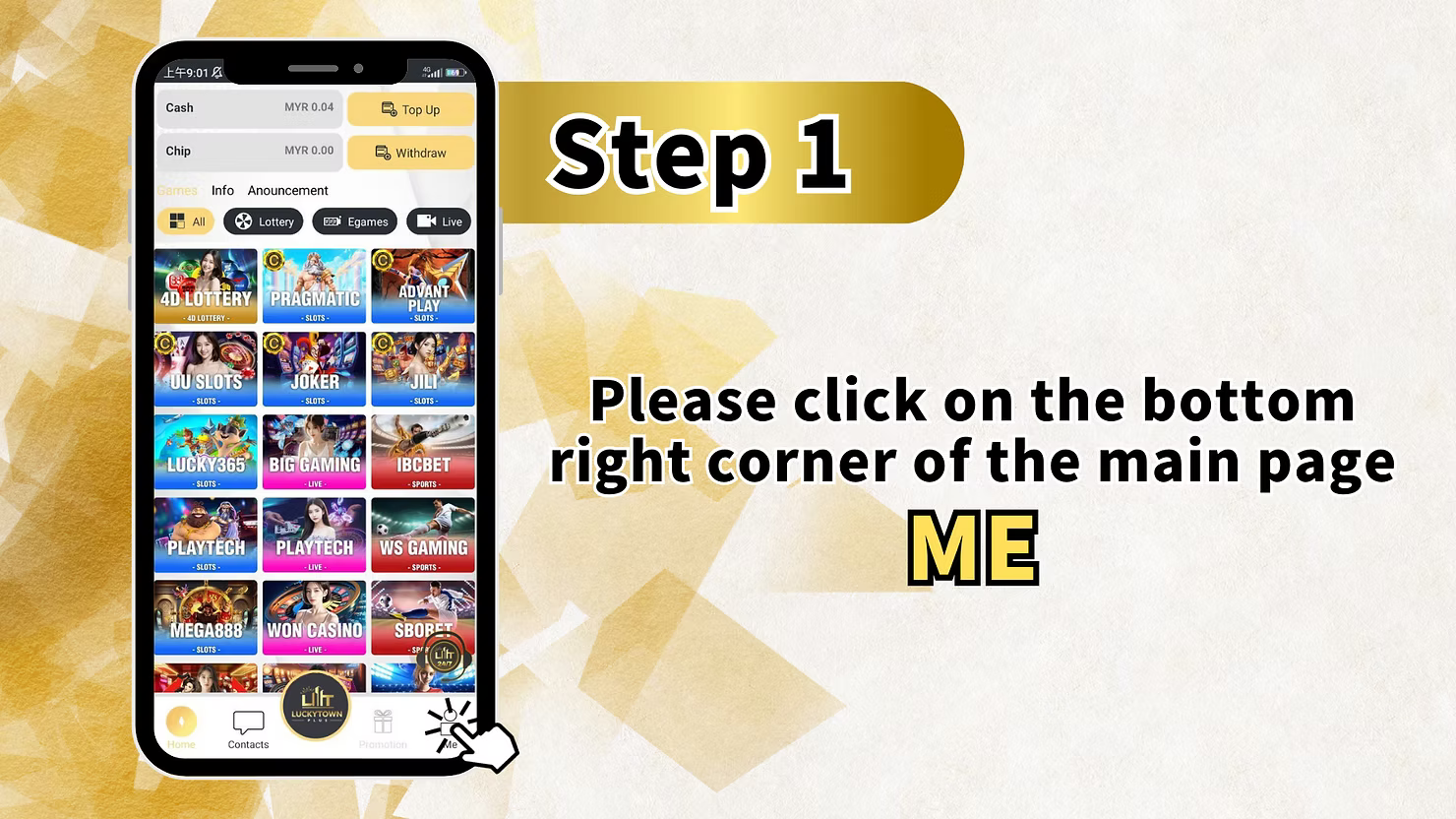
Step 1: Access Your Account
Open the LUCKYTOWN PLUS app on your mobile device. On the main page, locate the bottom right corner and click on "ME" (shown as "PDF" in some interfaces) to access your personal account dashboard.
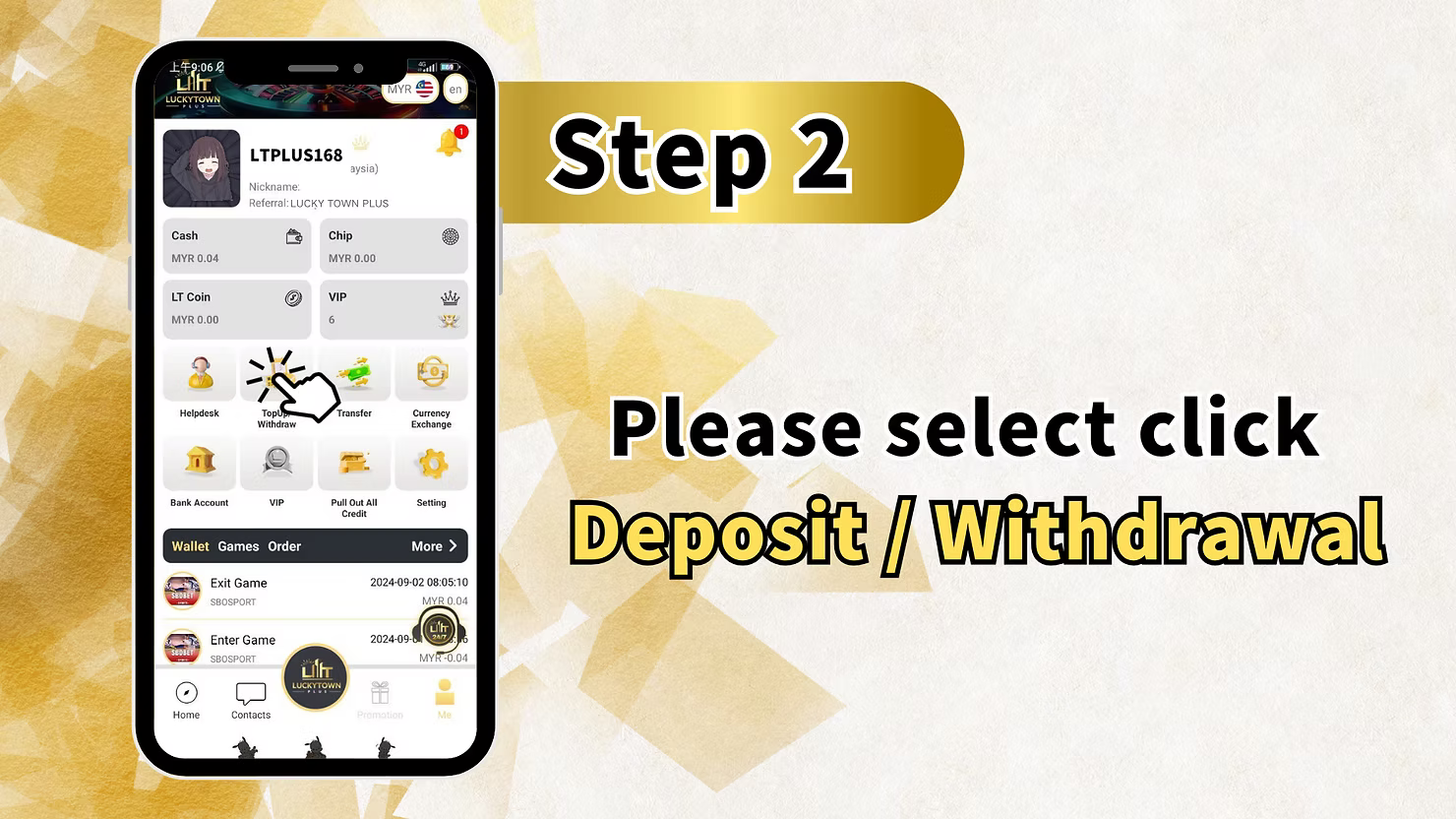
Step 2: Navigate to Deposit/Withdrawal
From the ME menu, click on "Deposit / Withdrawal." This will take you to the funds management page where you can choose between topping up or withdrawing funds from your LUCKYTOWN PLUS account.
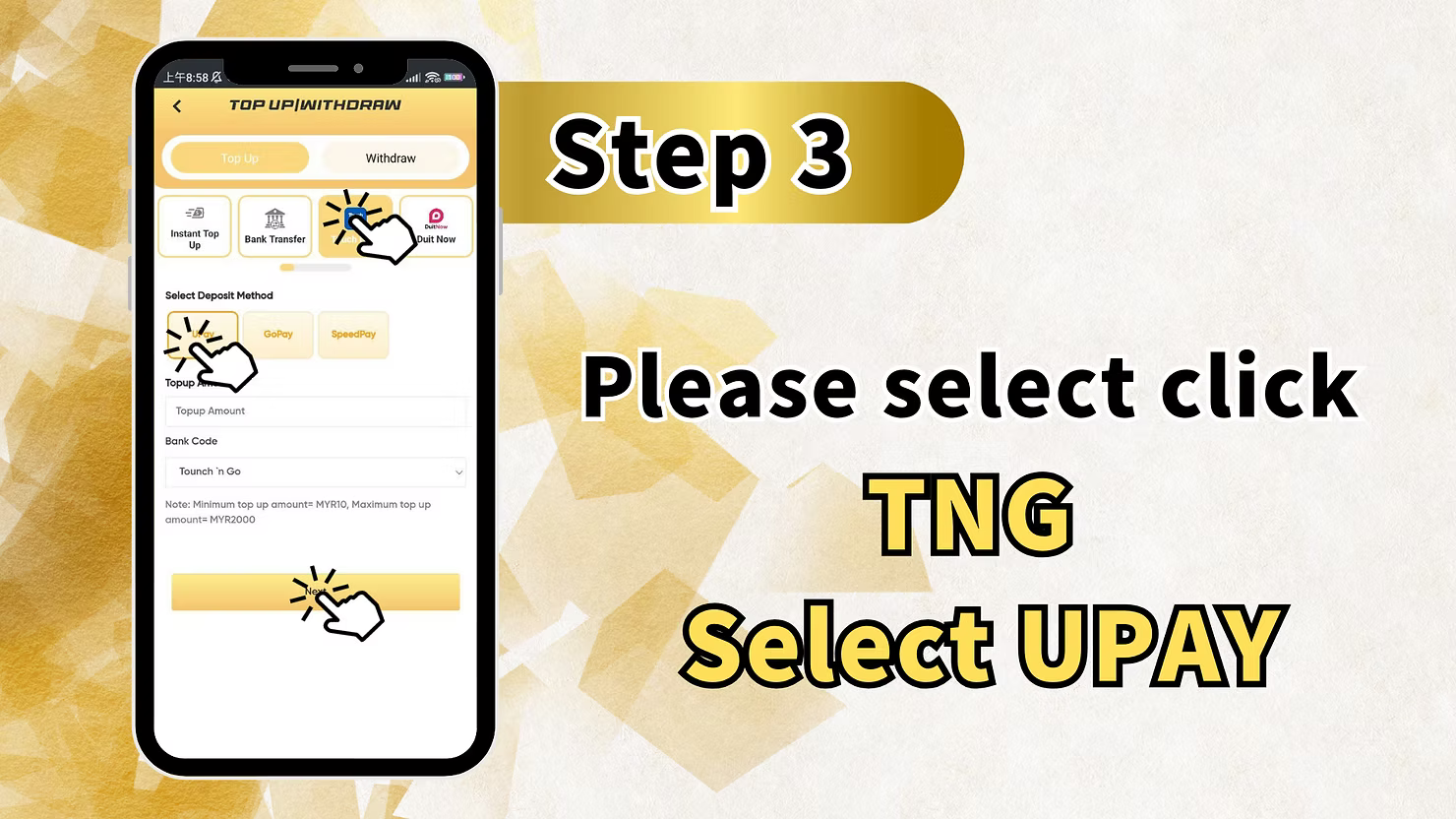
Step 3: Select TNG and Choose UPay
On the deposit methods page, select "TNG" or "TONG" (Touch N Go) option. Then choose "UPay" as your payment provider.
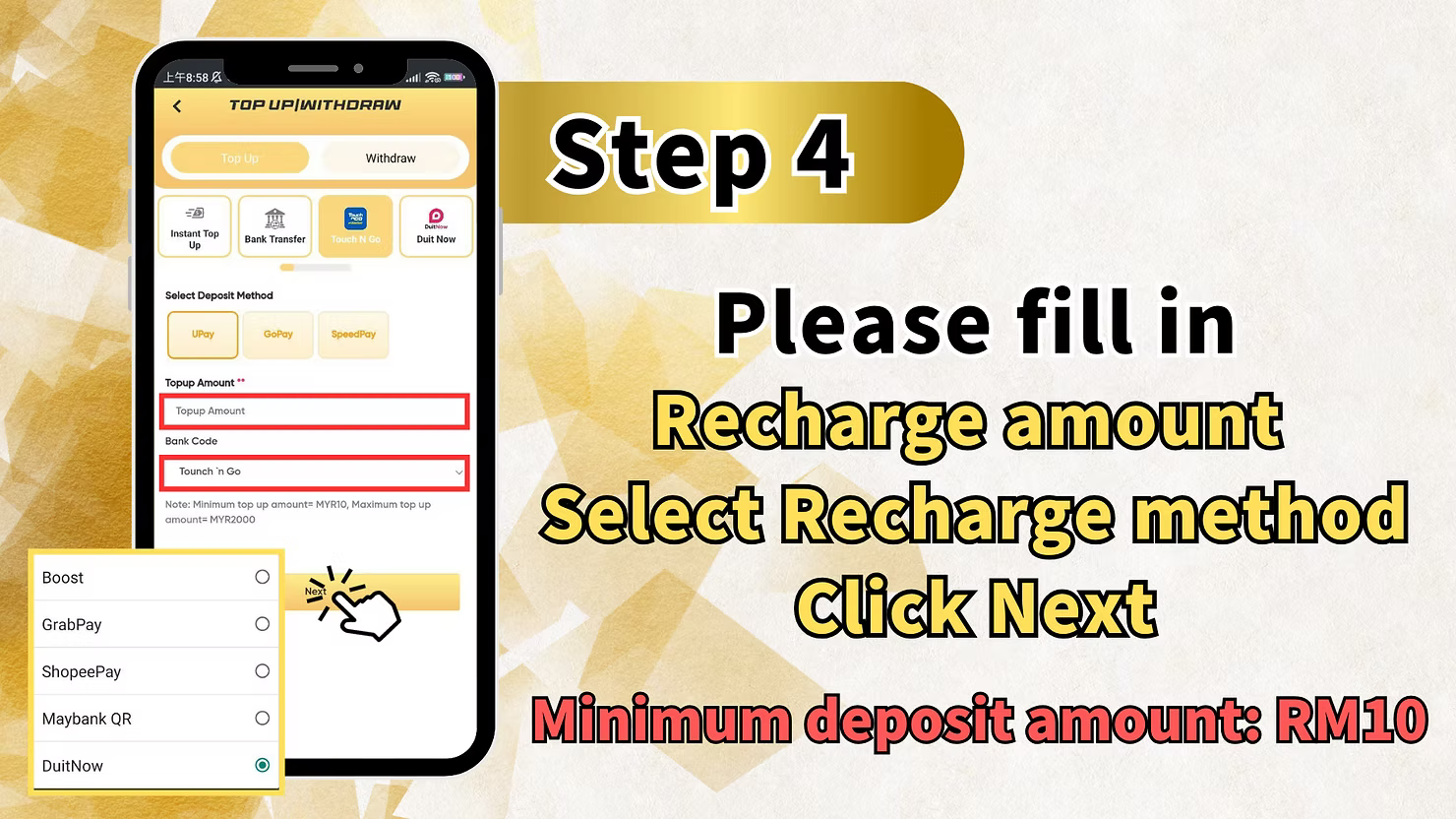
Step 4: Enter Withdrawal/Deposit Amount
Fill in the "Withdraw amount" or deposit amount you wish to transfer. Select the correct amount and click "Next" to proceed.
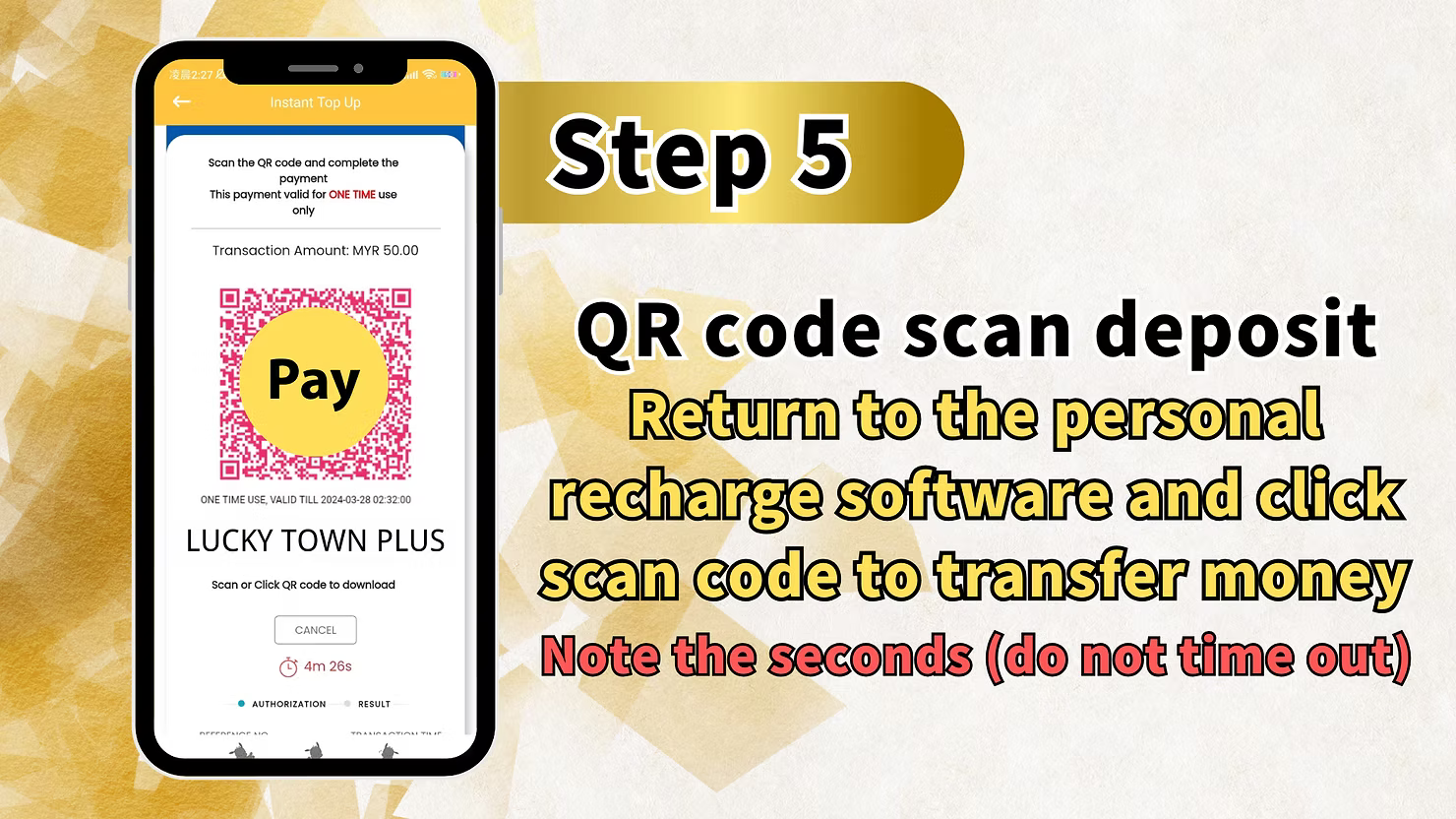
Step 5: Scan QR Code and Complete Payment
LUCKYTOWN PLUS will display a QR code for your transaction. Open your Touch N Go e-wallet or UPay app, scan the QR code, and complete the transfer.
Important Note: Pay attention to the timer - do not let the QR code time out. Complete your scan and payment promptly.
After scanning, click "Pay" in your payment app to finalize the transaction.
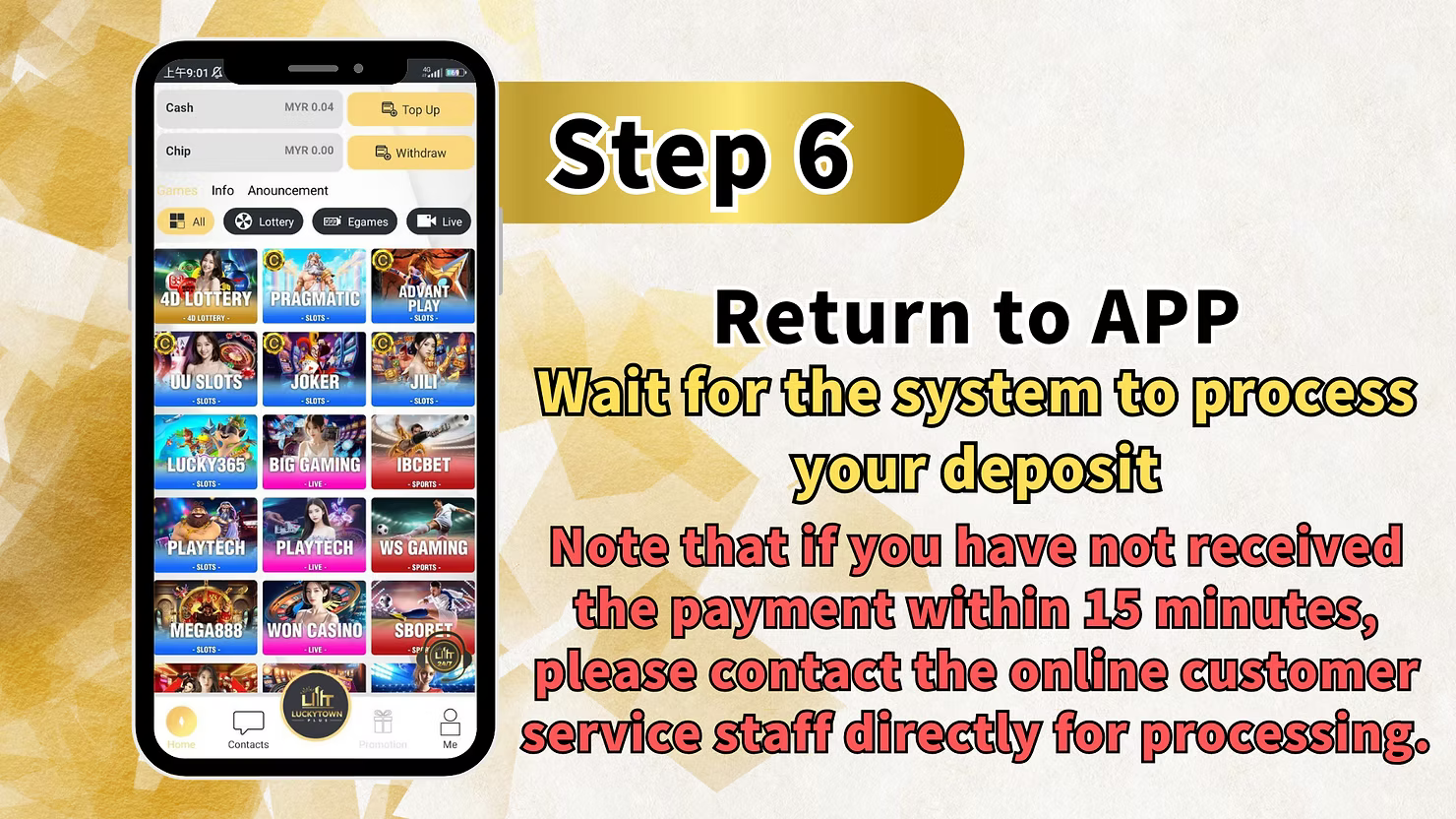
Step 6: Return to App and Wait for Processing
After completing the payment, return to the LUCKYTOWN PLUS app. Wait for the system to process your deposit.
Note: If you have not received confirmation of your payment within 15 minutes, please contact online customer service directly for processing. Our support team is ready to assist with any deposit issues.

Go Pay TNG Scan QR - Step-by-Step
Step 1: Access Your Account
Open the LUCKYTOWN PLUS app. On the main page, click on the bottom right corner to access your account menu.
Step 2: Navigate to Deposit/Withdrawal
Select "Deposit / Withdrawal" (or simply click "Next" or "Withdrawal" depending on your interface) to access funds management.
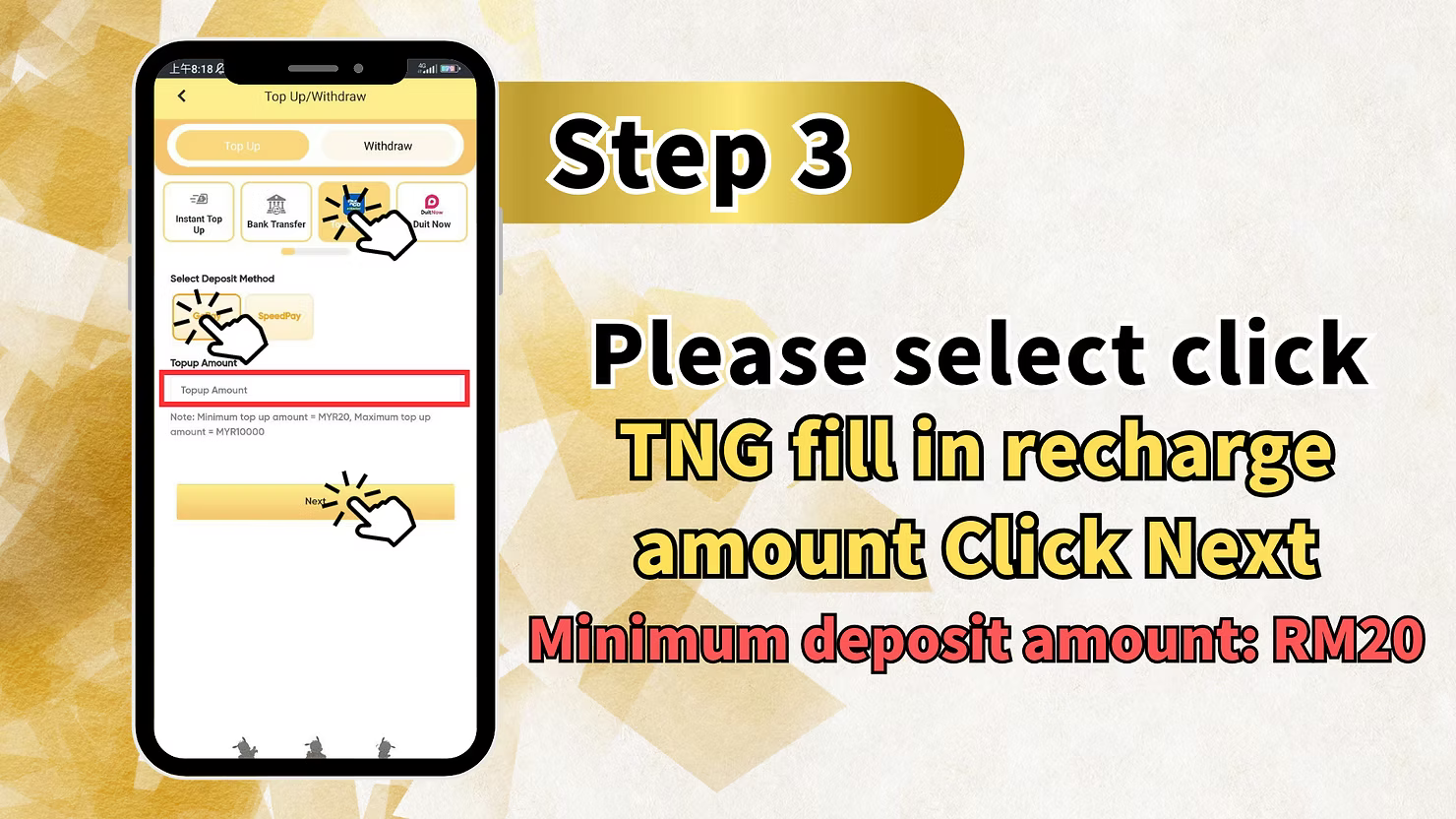
Step 3: Select TNG and Choose Go Pay
Choose the "TNG" option, then select "Go Pay" as your payment provider. You may see an option like "TNG fill in deposit / withdraw" - select this.
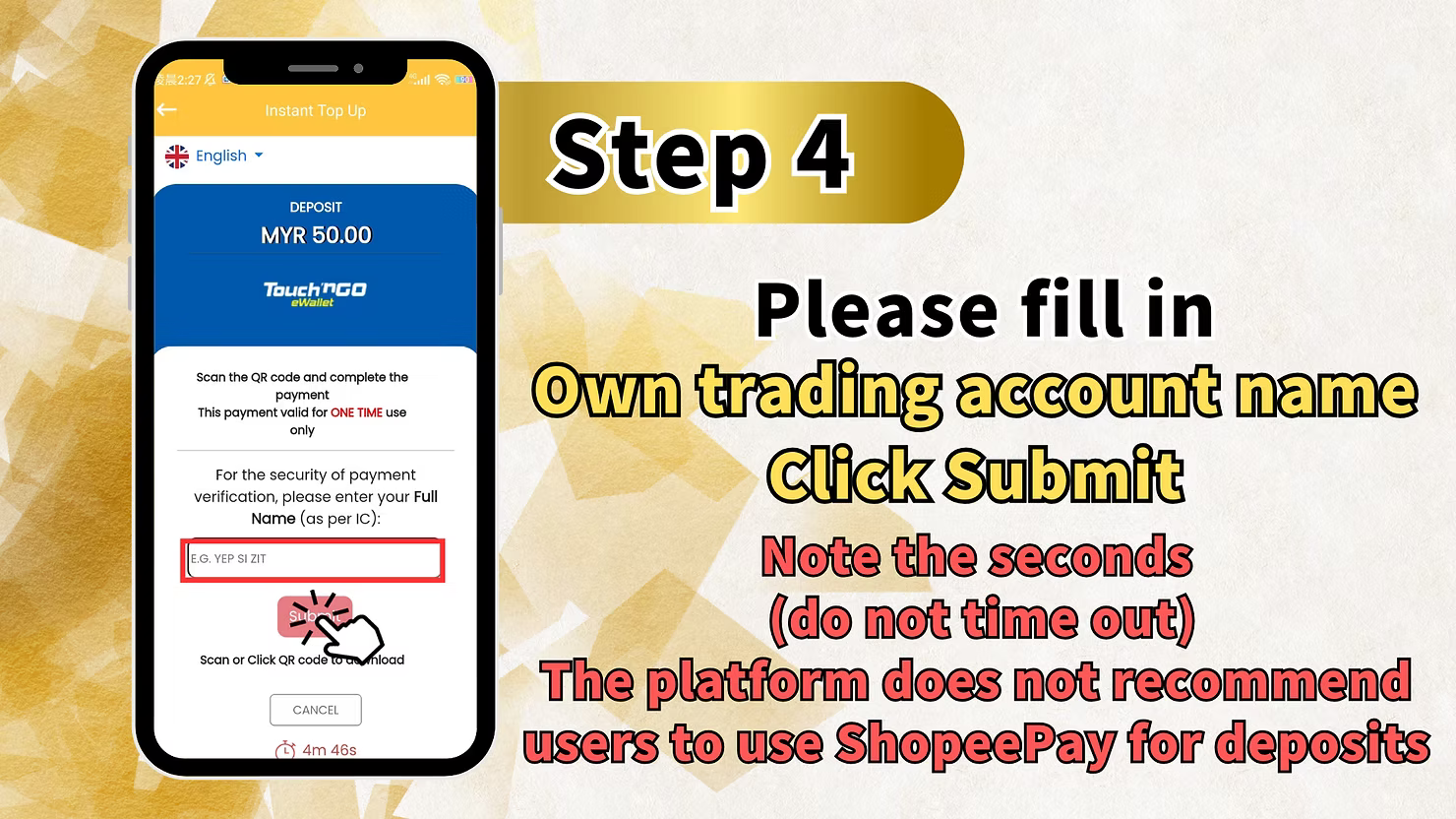
Step 4: Fill in Trading Account Name
Before scanning the QR code, you need to fill in your trading account name in the provided field. This information helps verify your identity for the transaction.
Step 5: Submit and Scan QR Code
After filling in your account name, click "Submit." LUCKYTOWN PLUS will generate a QR code for your deposit.
Scan the QR code with your Touch N Go e-wallet or Go Pay app to deposit funds into your personal account. Complete the payment as instructed in your app.
Step 6: Return to App and Wait for Processing
Return to the LUCKYTOWN PLUS app after completing payment. The system will process your deposit.
Note: If you have not received your funds within 15 minutes, or if you encounter any issues with the app, please contact online customer service directly for processing.
Summary of TNG Scan QR Top Up Steps
Quick Reference Checklist
Here's a quick summary of TNG Scan QR top-up options at LUCKYTOWN PLUS:
For UPay TNG:
- Click ME (bottom right)
- Select Deposit / Withdrawal
- Choose TNG and select UPay
- Enter amount and click Next
- Scan QR code and click Pay (avoid timeout)
- Return to app, wait up to 15 minutes, and contact support if needed
For Go Pay TNG:
- Click bottom right to access account
- Select Deposit / Withdrawal
- Choose TNG and select Go Pay
- Fill in trading account name
- Click Submit and scan QR code
- Return to app, wait up to 15 minutes, and contact support if issues arise
Important Notes for Successful TNG Scan QR Top Up
Avoid QR Code Timeout
QR codes displayed by LUCKYTOWN PLUS have a limited validity period. Pay attention to any timer on screen and complete your scan and payment promptly. If the code expires, you may need to generate a new one.
15-Minute Processing Window
Most deposits are processed within minutes. However, if you have not received confirmation of your payment within 15 minutes, please contact LUCKYTOWN PLUS online customer service immediately for assistance.
Accurate Account Information
For Go Pay transactions, ensure you enter your correct trading account name before submitting. Incorrect information may delay processing.
Use Official App Only
Always use the official LUCKYTOWN PLUS app and your legitimate e-wallet apps for deposits. Avoid third-party or unofficial apps to protect your security.
Frequently Asked Questions About TNG Scan QR Top Up
What is TNG Scan QR?
TNG Scan QR refers to using Touch N Go e-wallet to scan a QR code for payments. LUCKYTOWN PLUS accepts TNG Scan QR through UPay and Go Pay for convenient deposits.
How long does processing take?
Most deposits are processed within minutes. If your payment hasn't been credited after 15 minutes, please contact customer support.
What if my QR code expires?
If your QR code times out, you can generate a new one by starting the deposit process again. Be sure to complete the scan promptly the second time.
What information do I need for Go Pay TNG?
For Go Pay TNG, you need to enter your trading account name before scanning the QR code. This helps verify your identity for the transaction.
What should I do if my deposit isn't credited after 15 minutes?
If your deposit isn't credited within 15 minutes, please contact LUCKYTOWN PLUS online customer service immediately. Our support team will investigate and resolve the issue.
Is TNG Scan QR secure?
Yes, TNG Scan QR is a secure payment method. Combined with LUCKYTOWN PLUS security measures, your transactions are protected. Always ensure you're using the official app and following proper procedures.
Can I use both UPay and Go Pay for TNG deposits?
Yes, LUCKYTOWN PLUS supports both UPay TNG and Go Pay TNG. Choose the option that works best with your available e-wallet.
What does "PDF" mean in Step 1?
"PDF" appears to be a display variation in some interfaces - it refers to the "ME" or profile section. Click the bottom right corner of the main page to access your account.
Who do I contact if I have app issues?
If you encounter any issues with the LUCKYTOWN PLUS app during the deposit process, please contact online customer service directly for assistance.
Top Up with TNG Scan QR Today at LUCKYTOWN PLUS
Ready to play? Follow our step-by-step TNG Scan QR guide to top up your LUCKYTOWN PLUS account now. Fast QR code deposits with UPay or Go Pay, quick processing, and dedicated customer support if needed. Start enjoying all your favorite games in minutes!
Top Up with TNG Scan QR at LUCKYTOWN PLUS