
Change App Icon at LUCKYTOWN PLUS - Personalize Your Home Screen
Why Customize Your LUCKYTOWN PLUS App Icon?
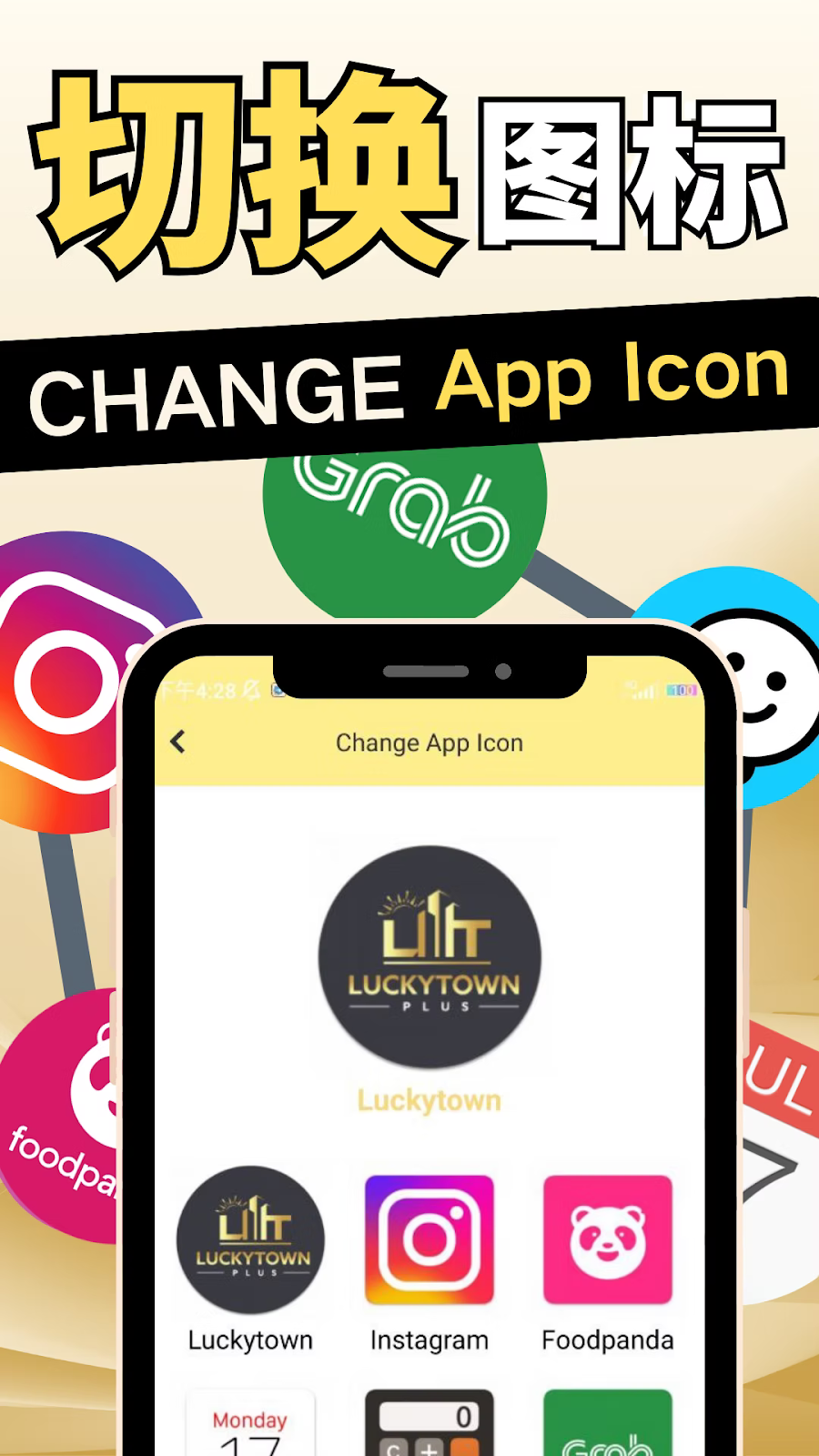
Make Your Device Uniquely Yours
Personalizing your LUCKYTOWN PLUS app icon allows you to express your style and make your device stand out. Whether you prefer a different color scheme or simply want to distinguish your gaming app from others, changing the icon is a quick and fun way to customize your experience.
Easy Access, Personal Touch
LUCKYTOWN PLUS understands that every player is unique. By offering the ability to change the app icon, we give you control over how you interact with your device. A personalized icon can make accessing your favorite platform feel even more special.
Understanding Your App Icon Options
What Icons Are Available?
LUCKYTOWN PLUS currently offers a selection of alternative app icons. The exact selection may vary based on your device and app version, but typically includes options like the classic logo, special edition designs, seasonal themes, and minimalistic variants. Check the in-app customization section to see the full collection.
Does Changing the Icon Affect App Functionality?
No, changing the app icon is purely cosmetic. All app features, login credentials, account balances, and game history remain completely unaffected. The icon is simply a shortcut to the same fully-functional LUCKYTOWN PLUS app you know and love.
Step-by-Step Guide to Change App Icon
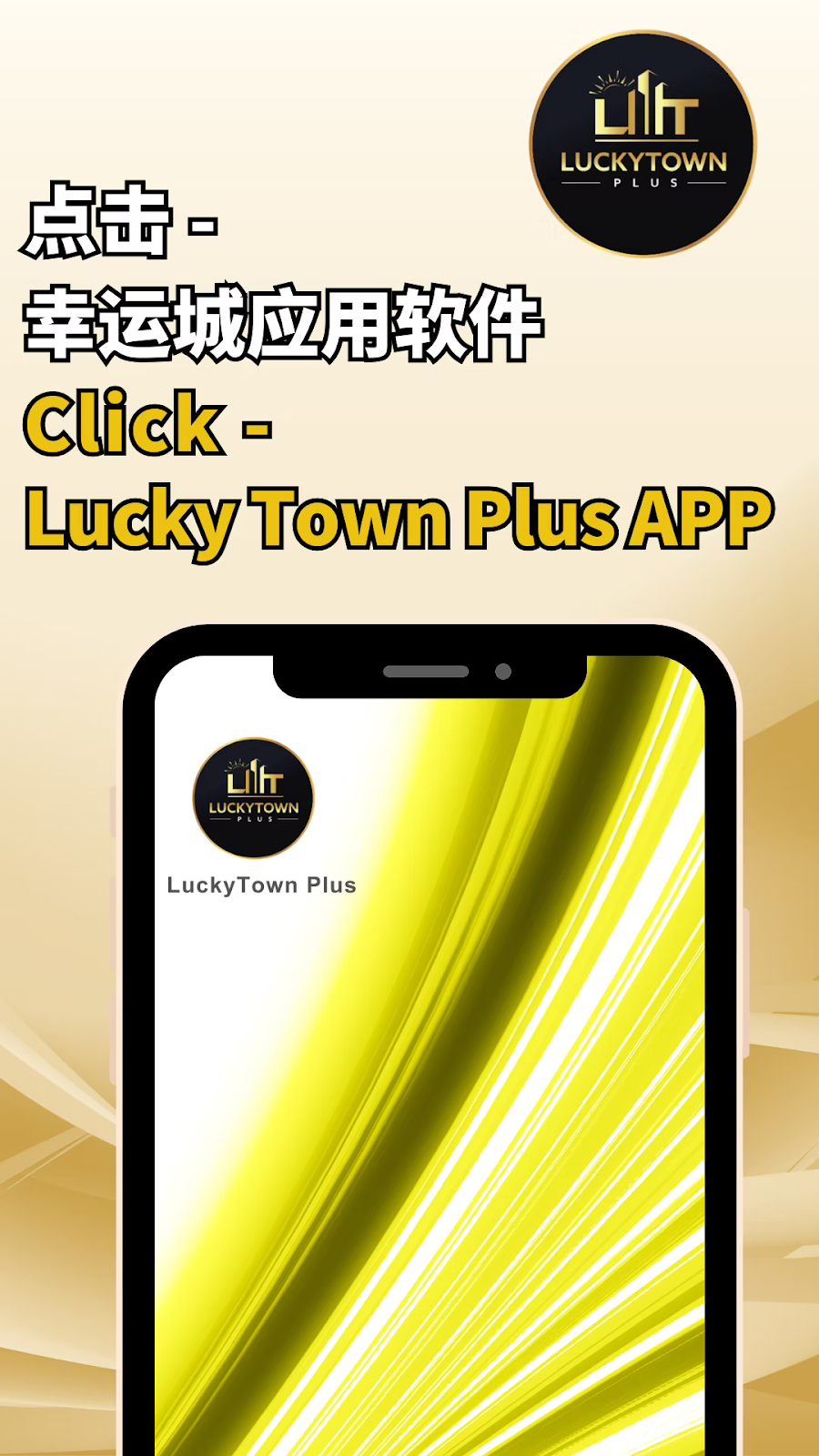
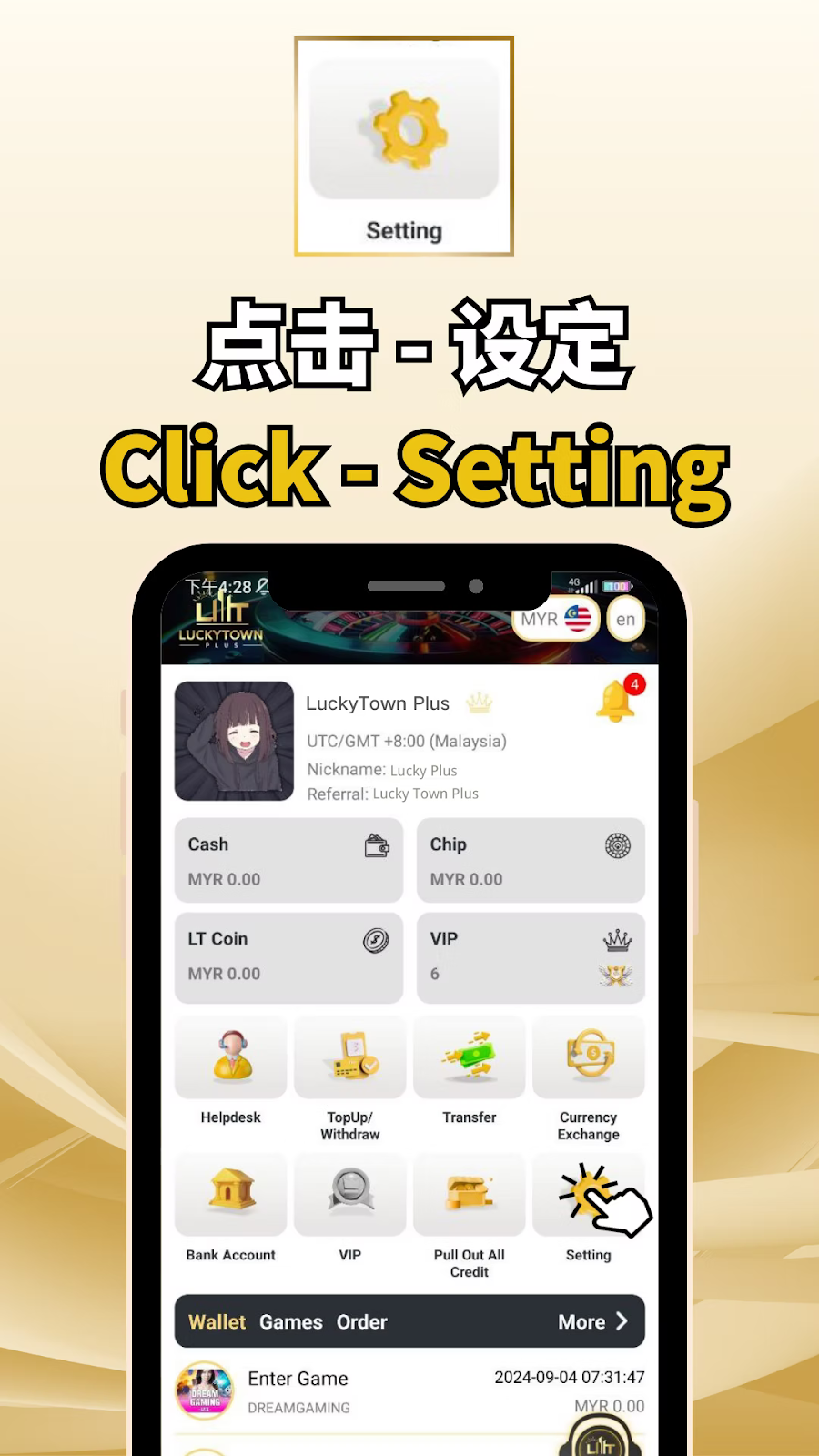
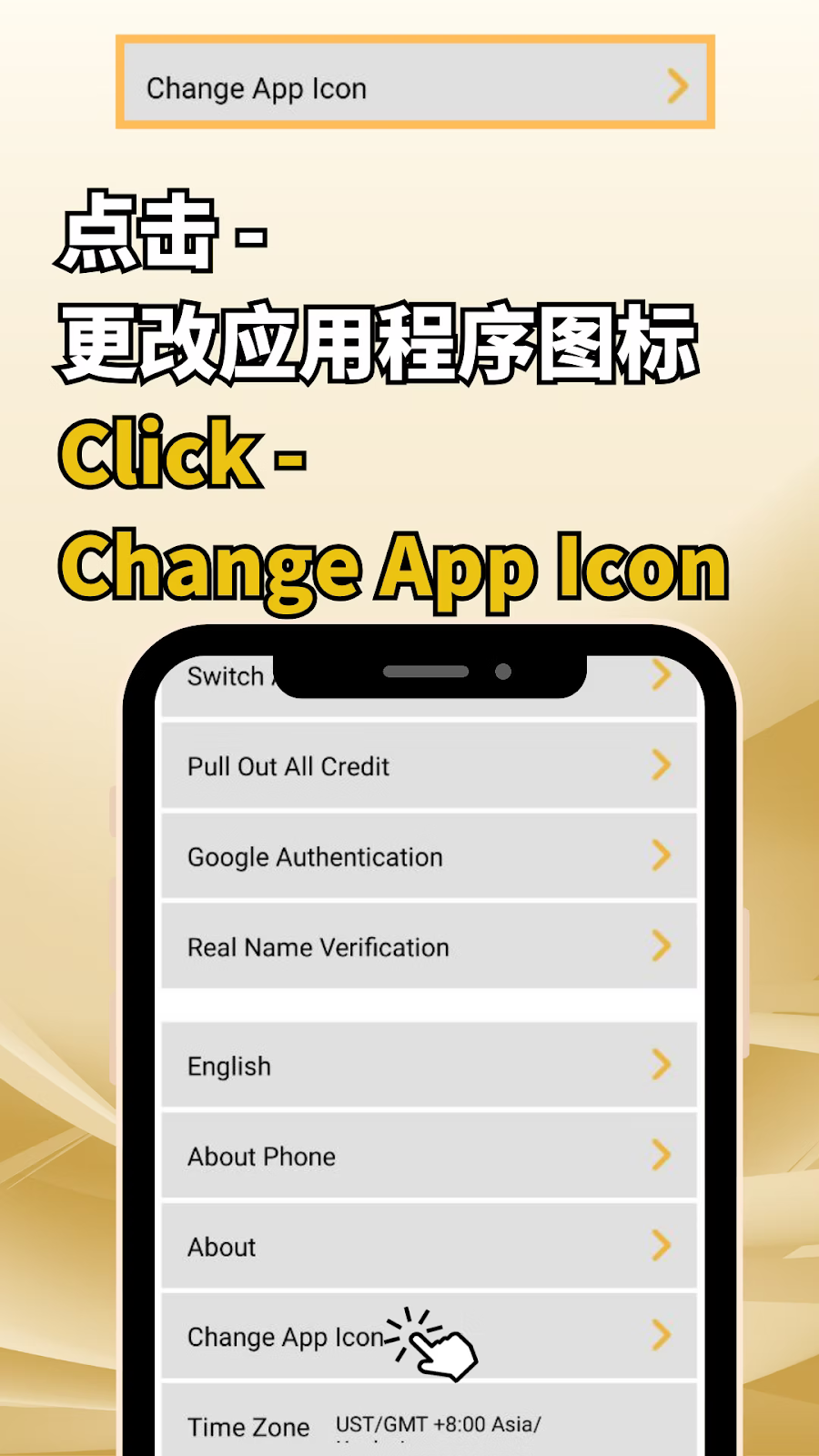
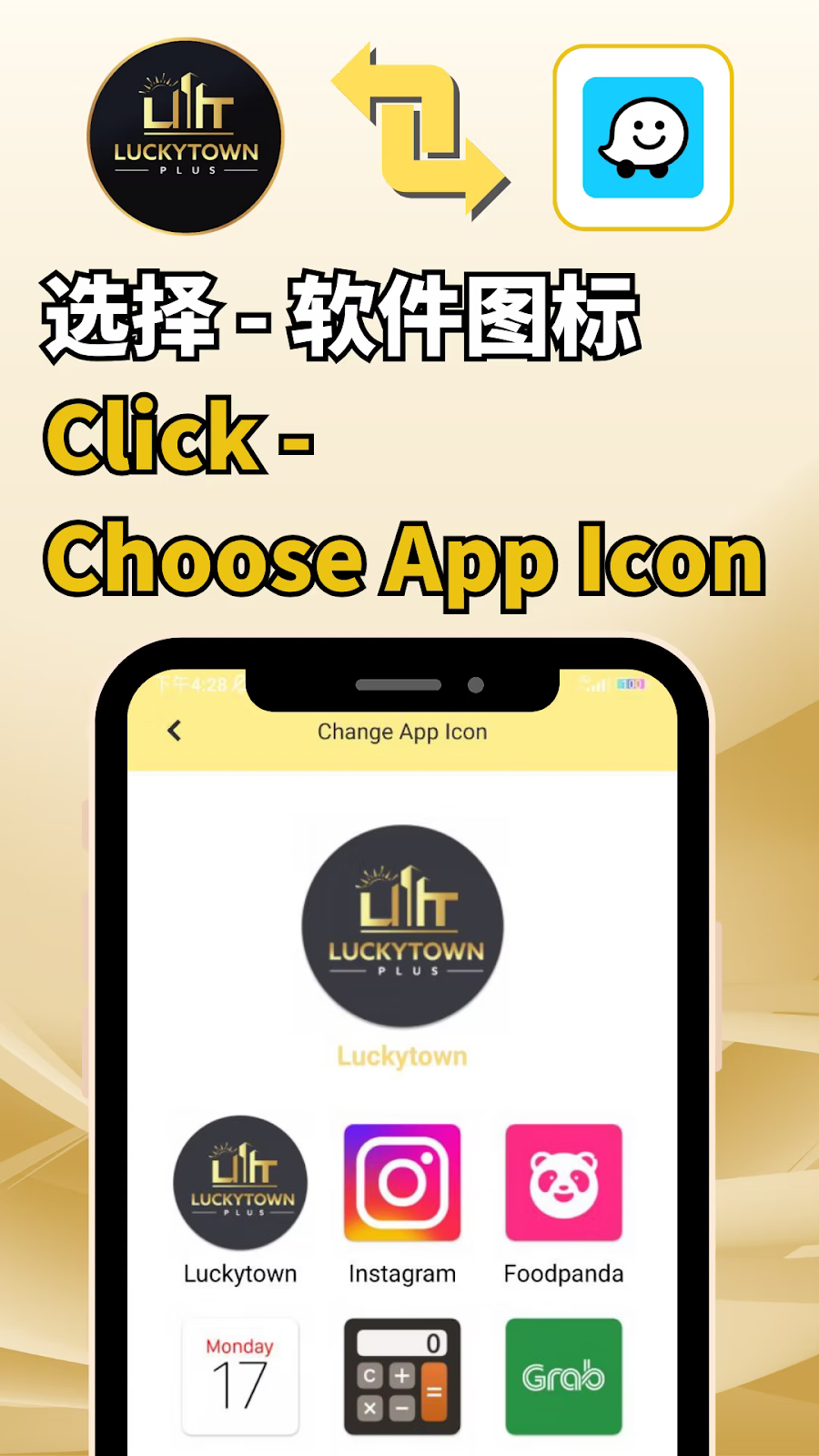
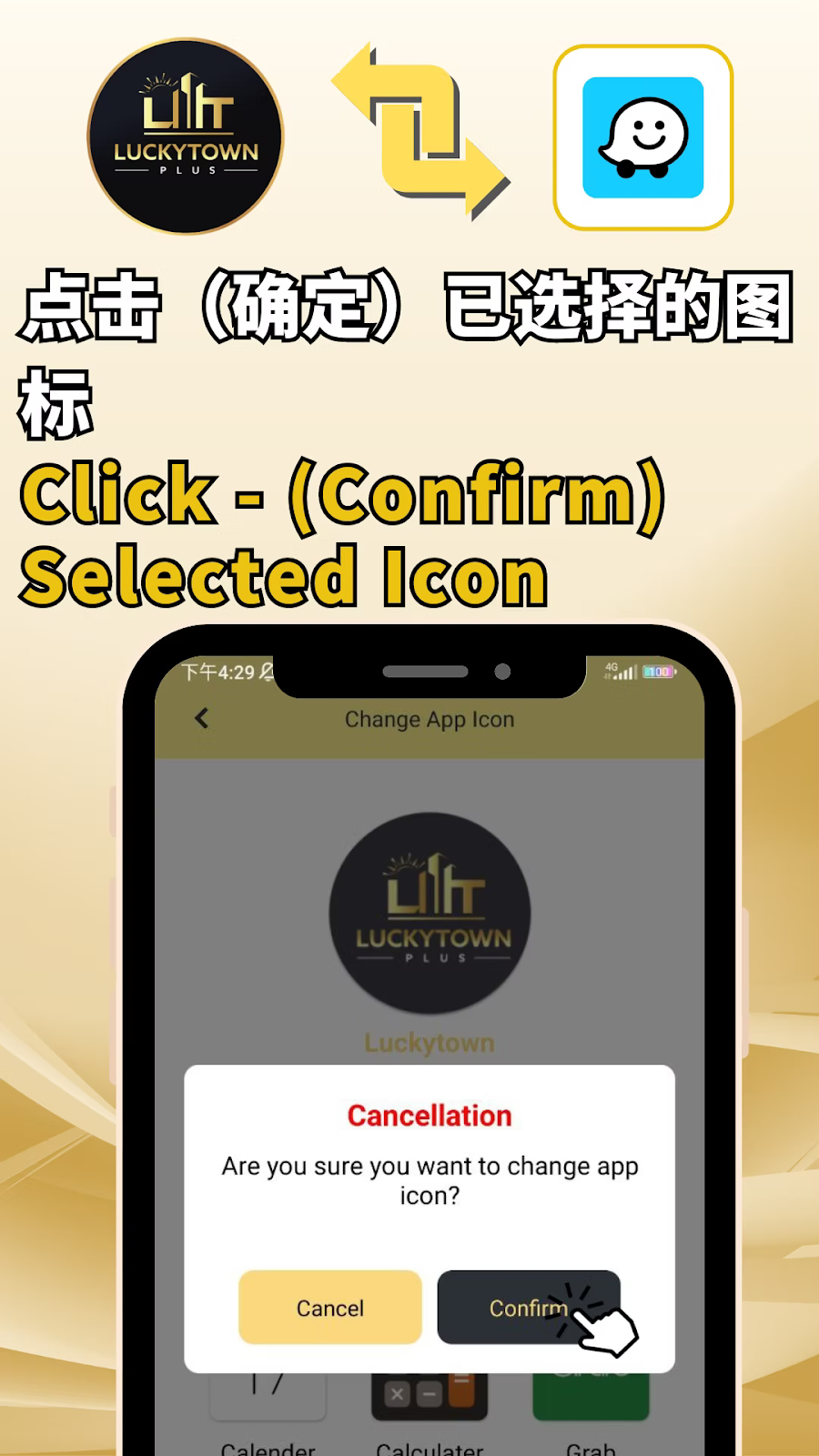
Method 1: Change Icon via Device Home Screen (Most Common)
Step 1: Locate the LUCKYTOWN PLUS App
Find the LUCKYTOWN PLUS app icon on your device's home screen or in the app drawer. Ensure you have the latest version of the app installed for the best experience.
Step 2: Access the App Info Menu
Press and hold the LUCKYTOWN PLUS app icon until a pop-up menu appears. For most Android devices, this menu will show options like "App info" or a small "i" icon. On iOS devices, this may appear as "Edit Home Screen" or a menu with app-specific options.
Step 3: Select "Edit" or "App Info"
Tap on the option to view app details or edit the app. This will take you to a screen where you can manage app permissions, notifications, and other settings. Look for the app icon preview at the top of this screen.
Step 4: Tap the App Icon Preview
On the app info screen, tap directly on the current app icon preview. This action will typically open a gallery or selection menu showing all available alternative icons for LUCKYTOWN PLUS.
Step 5: Choose Your New Icon
Browse through the available icon options. Tap on any icon to preview it. Once you've found your preferred design, select it. The change is usually applied instantly without requiring a confirmation button.
Step 6: Return to Home Screen
Navigate back to your home screen. You should now see the LUCKYTOWN PLUS app with your newly selected icon. The original app remains unchanged, only the icon appearance has been updated.
Method 2: Change Icon via Device Settings
Step 1: Open Device Settings
Access your device's main settings menu. This is typically represented by a gear icon on your home screen or in the app drawer.
Step 2: Navigate to Apps or Applications
Scroll to find "Apps," "Applications," or "App Management." The exact name varies by device manufacturer and Android or iOS version.
Step 3: Find LUCKYTOWN PLUS in the App List
Scroll through the list of installed applications to locate LUCKYTOWN PLUS. Tap on it to open the app details page.
Step 4: Access Icon Customization
On the app details page, look for an option labeled "Icon," "App icon," or "Customize icon." This may be located under a "Home Screen" or "Appearance" section. Tap it to view available icon options.
Step 5: Select and Apply
Choose your preferred icon from the available designs. The change will be applied immediately, and you can return to your home screen to see the new look.
Troubleshooting: Icon Not Changing
Clear App Cache
If the icon doesn't update after following the steps, try clearing the LUCKYTOWN PLUS app cache. Go to Settings > Apps > LUCKYTOWN PLUS > Storage, and tap "Clear Cache." This refreshes the app's temporary data without affecting your account or personal information.
Restart Your Device
A simple device restart can resolve many minor display issues. After restarting, check if the icon has updated to your selected design.
Update the App
Icon customization features may require the latest version of LUCKYTOWN PLUS. Visit your device's app store to ensure you have the most recent update installed.
Reinstall the App
If all else fails, uninstall and reinstall LUCKYTOWN PLUS. Remember to ensure you have your login credentials handy before doing so. After reinstallation, you should be able to customize the icon as described.
Important Notes for App Icon Customization
Device Compatibility
The ability to change app icons depends on your device's operating system and launcher. Most modern Android and iOS devices support this feature. If you're using a third-party launcher, the process may differ.
Icon Availability
The selection of available icons may be updated periodically. Check back after app updates to discover new designs, including seasonal and limited-edition icons.
No Impact on Account
Changing your app icon does not affect your LUCKYTOWN PLUS account in any way. Your login details, game progress, balance, and personal settings remain exactly as they were.
Frequently Asked Questions
Will changing the app icon delete my account?
No. Changing the icon is purely a cosmetic change. Your account data, including balance, game history, and personal settings, remains completely intact.
Can I change the icon back to the original?
Yes. Simply follow the same steps and select the default icon from the gallery to revert to the original LUCKYTOWN PLUS logo.
Why don't I see the icon change option?
This feature may require the latest version of LUCKYTOWN PLUS. Ensure your app is updated. If the option is still not visible, your device may not support native icon customization.
Does this work on iPhone?
Yes, iOS devices with recent updates support app icon customization through the "Edit Home Screen" menu. The process may differ slightly from Android.
Will the new icon affect notifications?
No. Notifications from LUCKYTOWN PLUS will continue to function normally regardless of which icon you've selected.
Can I use my own image as the app icon?
Currently, LUCKYTOWN PLUS only supports pre-designed icons provided within the app. Using custom images is not supported at this time.
Do I need to do this for every device?
Yes, app icons are stored locally on each device. If you use LUCKYTOWN PLUS on multiple devices, you'll need to customize the icon separately on each one.
Who do I contact if I have issues?
If you encounter any problems while trying to change your app icon, contact LUCKYTOWN PLUS customer support through the Helpdesk option for assistance.
Personalize Your LUCKYTOWN PLUS Experience Today
Make your home screen truly yours by customizing your LUCKYTOWN PLUS app icon. Follow our simple guide to choose a design that reflects your style. It's quick, easy, and completely free!
Customize Your Icon at LUCKYTOWN PLUS