
Get LUCKYTOWN PLUS – Install on Any Device Today
Why Install LUCKYTOWN PLUS on Your Device?
One-Tap Access to Your Favorite Platform
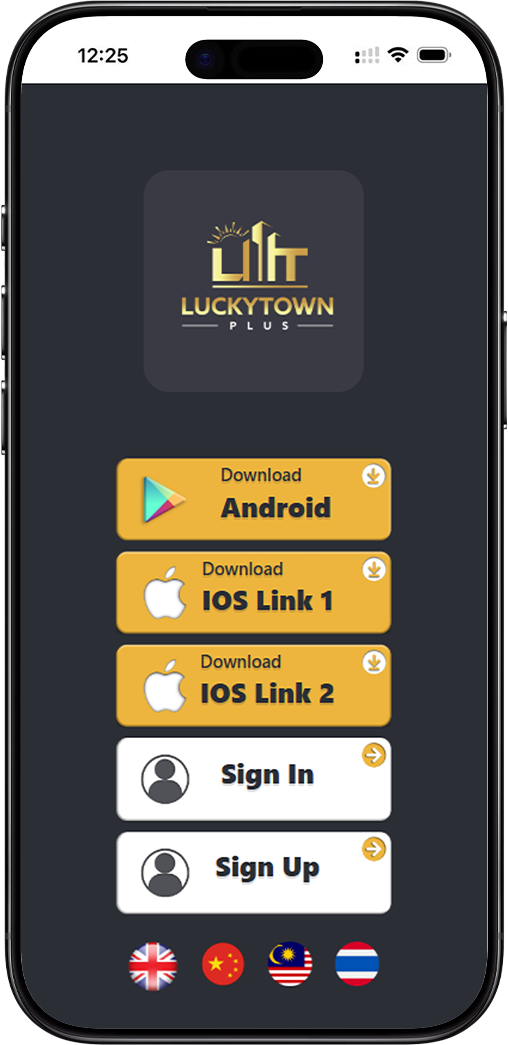
Installing LUCKYTOWN PLUS on your smartphone or creating a desktop shortcut eliminates the need to type URLs repeatedly. Simply visit https://luckytownplus.cc/download, select your device, and follow the steps for instant, app-like access.
Optimized Performance Across All Devices
Whether you're using an Android phone, iPhone, Windows PC, or Mac, LUCKYTOWN PLUS delivers a consistent and smooth experience. The guides below are tailored for each operating system, ensuring you get the best setup from our official download hub.
Install LUCKYTOWN PLUS on Android Devices
Option 1: Direct APK Installation (Fastest Method)
1. Access the Official Download Center
On your Android device, open Chrome or any browser and go to https://luckytownplus.cc/download. Tap the "Download Android" button to retrieve the official LUCKYTOWN PLUS APK file directly.
2. Allow Installation from Unknown Sources
When prompted, grant permission for installations from unknown sources. Alternatively, navigate to Settings > Security and enable "Unknown Sources" manually before proceeding with the LUCKYTOWN PLUS setup.
3. Complete Installation and Launch
Once the APK finishes downloading, tap on the file to begin installation. After the process completes, tap "Open" to launch LUCKYTOWN PLUS and log in or sign up instantly.
Option 2: Add to Home Screen via Browser
1. Launch Chrome Browser
Open Chrome on your Android device and visit https://luckytownplus.cc/download or the main LUCKYTOWN PLUS platform page.
2. Open the Browser Menu
Tap the three-dot menu icon (⋮) located in the top-right corner of the screen.
3. Select "Add to Home Screen"
From the dropdown menu, choose "Add to Home Screen." If you see "Install App" instead, try enabling Airplane Mode briefly and refresh the page to reveal the correct option for LUCKYTOWN PLUS.
4. Confirm and Add Shortcut
Enter a name such as "LUCKYTOWN PLUS" and tap "Add." The icon will now appear on your home screen, functioning like a native app for quick entry.
Set Up LUCKYTOWN PLUS on iOS (iPhone & iPad)
Add to Home Screen Using Safari
1. Open Safari Browser
On your iPhone or iPad, launch Safari (this feature is exclusive to Safari). Navigate to https://luckytownplus.cc/download or the main LUCKYTOWN PLUS page.
2. Tap the Share Icon
At the bottom of the screen, tap the share button, a square with an upward arrow.
3. Choose "Add to Home Screen"
Scroll through the share options and select "Add to Home Screen."
4. Name and Save
Customize the shortcut name (e.g., LUCKYTOWN PLUS) and tap "Add" in the top-right corner. The icon will be placed on your home screen for one-tap access.
Set Up LUCKYTOWN PLUS on Windows PC
Method 1: Drag & Drop Shortcut
Step 1: Open Your Browser
Launch Chrome, Edge, or Firefox on your Windows computer. Go to https://luckytownplus.cc/download or the primary LUCKYTOWN PLUS page.
Step 2: Drag the Lock Icon
Click and hold the lock icon (🔒) in the address bar, then drag it to your desktop. This instantly creates a shortcut that opens LUCKYTOWN PLUS in your default browser.
Method 2: Browser-Based Shortcut (Chrome/Edge)
Step 1: Open Browser Menu
In Chrome or Edge, click the three-dot menu (⋮) in the top-right corner.
Step 2: Create Shortcut
Navigate to More Tools > Create Shortcut… (in Chrome) or Apps > Install this site as an app (in Edge).
Step 3: Name and Confirm
Enter a name like "LUCKYTOWN PLUS" and check "Open as window" for an app-like experience. Click "Create" or "Install" to add the shortcut to your desktop.
Method 3: Manual Shortcut Creation
Step 1: Right-Click on Desktop
Right-click anywhere on your desktop and select New > Shortcut.
Step 2: Enter the URL
In the location field, paste the official LUCKYTOWN PLUS URL: https://luckytownplus.cc/download. Click "Next."
Step 3: Name and Finish
Type a name (e.g., LUCKYTOWN PLUS) and click "Finish." A shortcut will appear on your desktop.
Set Up LUCKYTOWN PLUS on macOS
Method 1: Safari Drag & Drop
Step 1: Open Safari
Launch Safari on your Mac and go to https://luckytownplus.cc/download or the main LUCKYTOWN PLUS page.
Step 2: Drag URL to Desktop
Click and drag the URL or lock icon from the address bar to your desktop. This creates a `.webloc` file that opens LUCKYTOWN PLUS in Safari when double-clicked.
Method 2: Chrome Shortcut
Step 1: Open Chrome Menu
In Chrome, click the three-dot menu (⋮) and select More Tools > Create Shortcut…
Step 2: Name and Create
Enter "LUCKYTOWN PLUS" as the name and click "Create." The shortcut will be placed on your desktop, linking directly to https://luckytownplus.cc/download.
Custom Icon (Optional)
Step 1: Get Info
Right-click the newly created shortcut and select "Get Info."
Step 2: Paste Custom Image
Copy a custom image file, click on the icon preview at the top of the Info window, and paste to personalize your LUCKYTOWN PLUS shortcut.
Frequently Asked Questions About LUCKYTOWN PLUS Download
Is the Android APK from https://luckytownplus.cc/download safe?
Yes, the official LUCKYTOWN PLUS APK provided through our download page is thoroughly scanned and secure. Always use https://luckytownplus.cc/download to obtain the file and avoid third-party sources.
Why can't I find "Add to Home Screen" on my iPhone?
This feature is only available in Safari. Make sure you're using Safari to visit https://luckytownplus.cc/download and try again. Other browsers like Chrome on iOS do not support this functionality.
Do desktop shortcuts work without internet?
The shortcut itself remains on your desktop, but an active internet connection is required to access LUCKYTOWN PLUS. The shortcut simply opens https://luckytownplus.cc/download or the main platform in your browser.
Can I install LUCKYTOWN PLUS as a Progressive Web App (PWA)?
Absolutely. On supported browsers such as Chrome and Edge, you can install LUCKYTOWN PLUS as a PWA, offering an app-like experience with offline capabilities and push notifications. Start by visiting https://luckytownplus.cc/download.
Ready to Install LUCKYTOWN PLUS?
Choose your device from the methods above and get LUCKYTOWN PLUS installed in minutes. Whether you prefer the Android APK, iOS home screen shortcut, or desktop access on Windows and Mac, https://luckytownplus.cc/download is your official starting point.
Download LUCKYTOWN PLUS Now